
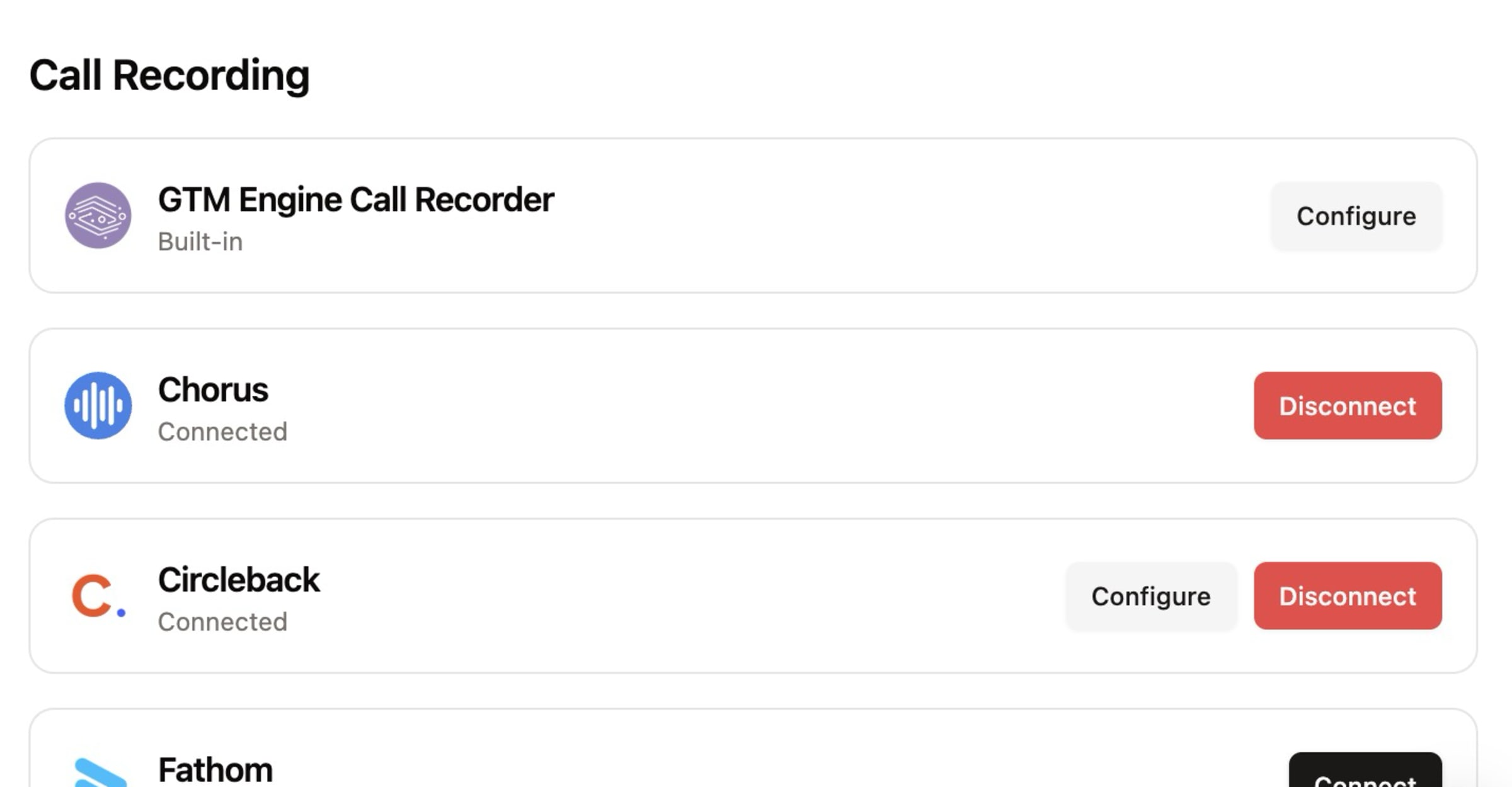
1. Feature Overview
The GTM Engine GTM Engine Call Recorder is an automated assistant that joins your scheduled meetings, records conversations, and intelligently associates those recordings with the appropriate calendar events in your system. This streamlines your meeting documentation process, ensuring that all important conversations are captured without manual intervention.
BETA NOTICE: The GTM Engine Call Recorder is currently in beta. While the core functionality is reliable, some advanced features are still in development. Your feedback during this phase will help us enhance the product.
2. Benefits to the User
- Automatic Recording: Eliminates the need to manually start and stop recording for each meeting
- Intelligent Association: Automatically links recordings to the correct calendar events in GTM Engine
- Improved Data Accuracy: Enhances the quality and reliability of meeting data captured in your CRM
- Focus on Conversations: Spend more time engaging with prospects and less time managing recording tools
- Seamless Integration: Works with your existing calendar and meeting platforms without disrupting your workflow
- Faster Processing: Meeting Activities and transcripts show up in minutes, not hours compared to other call recorders.
3. Accessing the Feature
Note: The GTM Engine Call Recorder is currently behind a feature flag and must be enabled by your Customer Success Manager.
Prerequisites:
- Your organization must have GTM Engine with the GTM Engine Call Recorder feature enabled
- You must have the appropriate permissions to use this feature
- Calendar integration must be configured in your GTM Engine account
Getting Access:
- Contact your GTM Engine Customer Success Manager to enable the GTM Engine Call Recorder feature flag for your account
- Once enabled, the GTM Engine Call Recorder will automatically appear in your scheduled meetings based on your configuration settings
4. Step-by-Step Usage Guide
Configuring GTM Engine Call Recorder Settings
- Navigate to your Profile Configuration page in GTM Engine
- Locate the GTM Engine Call Recorder section
- Configure the following settings:
- Meeting Types: Choose whether the bot joins all meetings or external-only meetings (default is external-only)

- Recording: Enable or disable automatic recording (Note: if recording is disabled, the bot will not join meetings)
- Bot Appearance: Administrators with access to the Integrations section of the GTM Engine platform can further customize the Call Recorder's display name and profile image appearance displayed when joining meetings
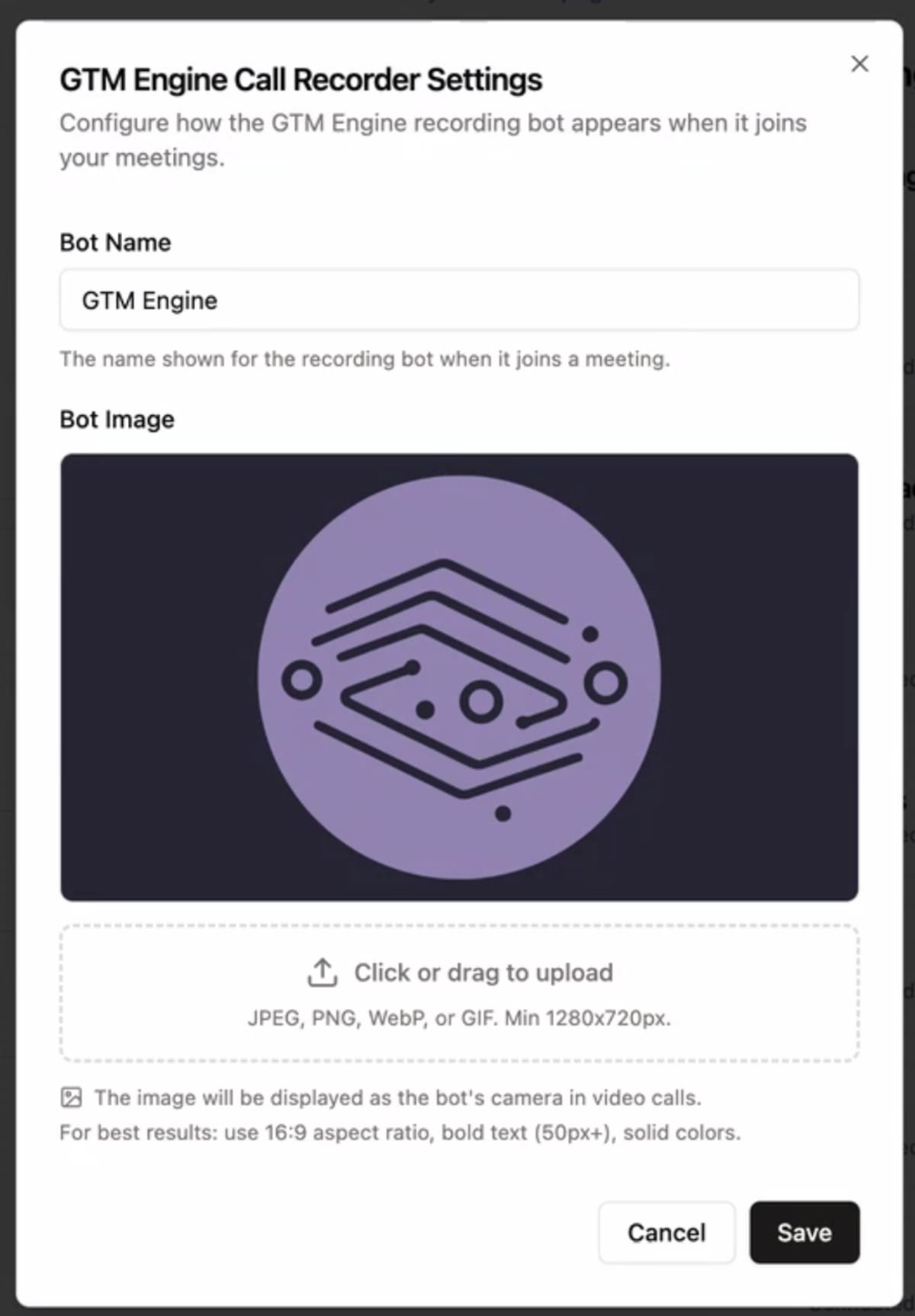
Important: Name changes apply to future meetings only and will not affect meetings already in progress.
Using the GTM Engine Call Recorder
Once configured, the GTM Engine Call Recorder works automatically:
- When you schedule a meeting that meets your configuration criteria (all meetings or external-only), the bot will automatically be added
- At meeting time, the bot will join as a participant
- If recording is enabled, the bot will begin recording automatically
- The recording will be processed and associated with the corresponding calendar event in GTM Engine
- You can access the recording and any generated insights through your GTM Engine dashboard
Organization-Level Behavior
- Only one bot will join per organization, even if multiple users from your organization are in the same meeting
- If participants from different organizations using GTM Engine join the same meeting, each organization will have its own bot present
5. Tips and Best Practices
Meeting Preparation
- Inform participants that meetings will be recorded by the GTM Engine Call Recorder
- For sensitive discussions, consider adjusting your GTM Engine Call Recorder settings temporarily
Troubleshooting
- Microsoft Environment Users: Some Microsoft organizations require the GTM Engine Call Recorder to be a signed-in user. If the bot isn't joining your meetings, contact GTM Engine support for assistance with this configuration.
- Recording Association Issues: If recordings aren't being properly associated with calendar events, verify that your calendar integration is functioning correctly.
Security and Privacy
- Recordings are stored securely within your GTM Engine environment
- Follow your organization's policies regarding meeting recordings and data retention
- Consider your local laws regarding consent for recording conversations
Coming Soon
While not yet available, the following features are being considered for future releases:
- Ability to remove the bot from a meeting via chat command
- Support for joining ad-hoc or unscheduled meetings
- Slack-based interaction with the Meeting Bot
- Enhanced Microsoft environment support
- More advanced AI interaction capabilities
For additional support or to provide feedback on the GTM Engine Call Recorder beta, please contact your GTM Engine account representative or submit a support ticket through the help center.
