
Feature Overview
GTM Engine is an AI-powered revenue execution platform that captures every call, email, and meeting across your revenue team and writes structured data back to your CRM automatically. The GTM Engine Slack integration brings that intelligence directly into Slack so your team gets deal updates, pipeline summaries, and AI-powered revenue agents without leaving the tools they already use.
The core problem we solve: revenue data lives in your CRM, but your team lives in Slack. Without a connection between the two, reps miss updates, managers chase status in DMs, and critical deal signals go unnoticed. GTM Engine closes that gap automatically.
What the GTM Engine Slack App Does
The GTM Engine Slack integration has two core capabilities:
1. Automated Workflow Notifications
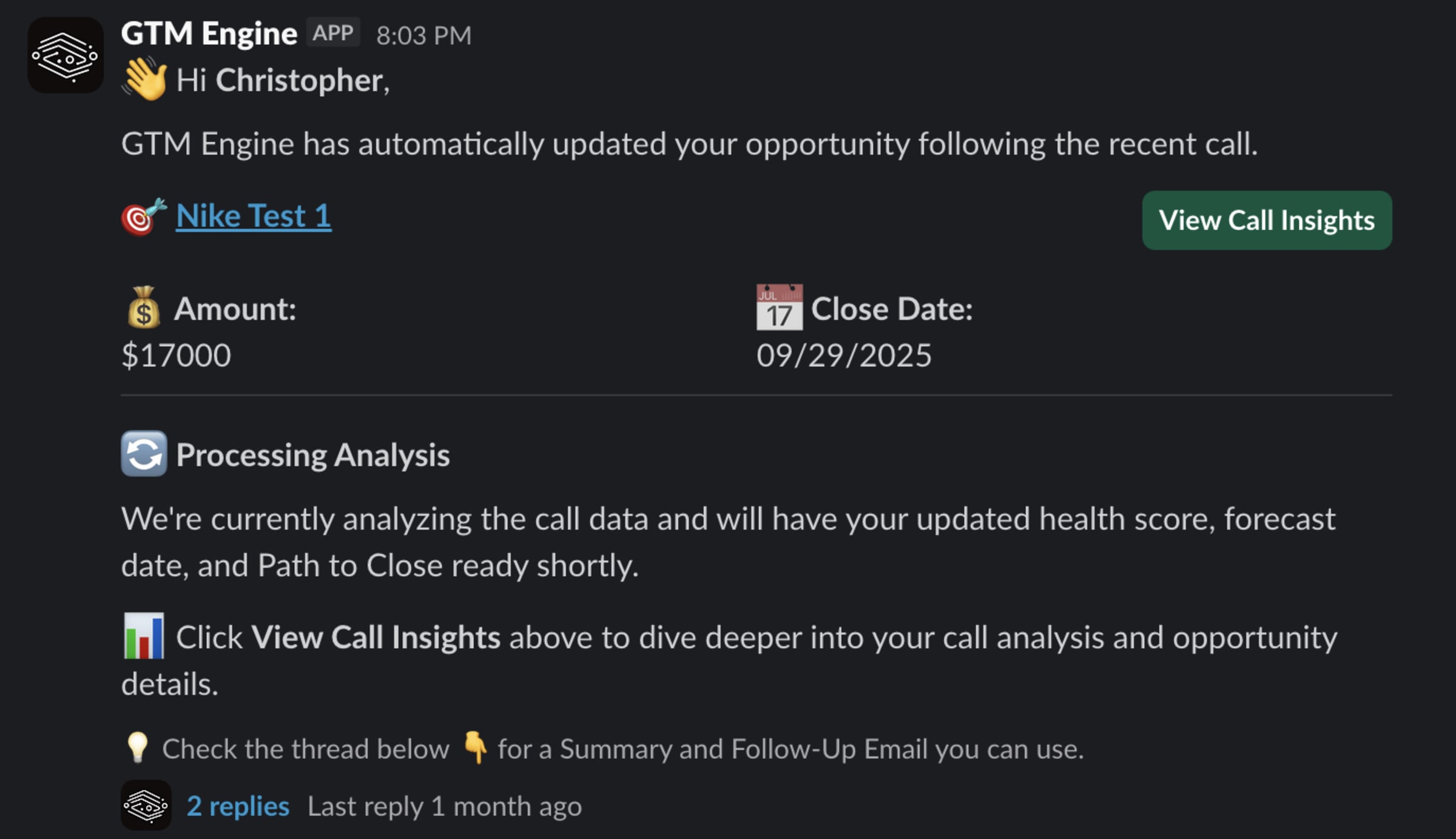
GTM Engine workflows can send automated messages to any Slack channel or user, including deal health alerts, post-meeting summaries, pipeline risk flags, follow-up reminders, and more. These messages are triggered automatically based on CRM activity, so your team is informed without anyone having to manually share updates.
2. AI Revenue Agents in Slack
RevOps teams can build and deploy custom AI agents directly into Slack through GTM Engine's Automations section. These agents have full context of your organization's revenue data, including pipeline, deal progress, forecast, contacts, and account history. They can answer questions, surface risks, and deliver insights on demand. Agents can be named and branded however your team prefers, and any agent can be deployed to a channel or DM.
How It Works in Slack
Once connected, GTM Engine operates in two modes inside Slack:
Automated Notifications
Workflows built in GTM Engine's Workflow Builder can include a Slack Message task. When a workflow triggers, whether post-meeting, on a CRM field change, on a risk flag, or on a schedule, it delivers a formatted message to the designated Slack channel or user. Messages can use plain text or Slack Block Kit for richer formatting.
Deployed AI Agents
RevOps users with access to the Automations section of GTM Engine can create custom AI agents, configure their data scope and toolset, and deploy them to Slack. Once deployed, team members can mention the agent in any channel or DM it has been added to and ask revenue-related questions in plain language. The agent responds using live data from your CRM and GTM Engine's intelligence layer.
Installing the GTM Engine Slack App
To add GTM Engine to your Slack workspace:
- Log in to your GTM Engine account at app.gtmengine.ai
- Navigate to Settings → Integrations
- Locate the Slack integration and click Connect
- You will be redirected to Slack's OAuth flow. Review the requested permissions and click Allow
- Once authorized, you'll be returned to GTM Engine and your Slack workspace will be connected
After Installation: Getting Started
After installing, you'll be redirected to a confirmation page inside GTM Engine confirming the connection was successful. From there:
To set up automated notifications:
- Navigate to the Workflows Library
- Open or create a workflow
- Add a Slack Message task to any workflow step
- Select the destination channel (e.g., #sales-team) or individual user
- Choose plain text or Block Kit formatting
- Save and publish your workflow
To deploy an AI agent to Slack:
- Navigate to Automations → Agents (RevOps and Admin roles only)
- Create a new agent or open an existing one
- Configure the agent's name, data scope, and available tools
- Click Deploy to Slack and select the channel or DM
- Team members can immediately begin asking the agent revenue questions
Feature Overview
The Slack Message task allows you to send automated messages from GTM Engine workflows directly to Slack channels or individual users. This feature enables you to deliver important information, notifications, or workflow outputs to your team's communication hub without manual intervention.
Benefits to the User
- Streamlined Communication: Automatically share important CRM insights with your team where they already collaborate
- Reduced Administrative Burden: Eliminate manual copying and pasting of information between systems
- Enhanced Visibility: Keep team members informed of critical deal updates, customer interactions, and workflow completions
- Customizable Formatting: Choose between simple text messages or professionally formatted messages using Slack's Block Kit
- Process Automation: Integrate Slack notifications into your broader GTM Engine workflows for a seamless experience
Accessing the Feature
- Log in to your GTM Engine account
- Navigate to the Workflows Library section
- Look for the Slack Message task in the available workflow tasks
Step-by-Step Usage Guide
Setting Up a Slack Message Task
- Select the Recipient:
- For a Slack channel: Enter the channel name preceded by a hashtag (e.g., #sales-team)
- For an individual user: Enter their Slack user ID
- Create Your Message:
- Map the message content from a previous workflow step or input it directly into the message field
- Your message can include data variables from earlier workflow steps
- Choose Message Format:
- Plain Text (Default): Simple text messages without formatting
- Block Kit: Enhanced formatting with interactive elements
- To enable Block Kit, check the "Block Kit" option inside the Slack task
- When using Block Kit, ensure the message field contains valid Slack Block Kit JSON
- Save Your Configuration:
- Click the "Save" button to finalize your Slack message task setup
Using Block Kit for Advanced Formatting
When the "Block Kit" option is checked:
- The data mapped into the message field must be valid Slack Block Kit JSON
- This JSON can be prepared in a previous workflow step
- Block Kit allows for more professional, interactive, and visually appealing messages
Tips and Best Practices
- Test Your Messages: Before implementing in production workflows, test your Slack messages to ensure they appear as expected
- Consider Your Audience: Use plain text for simple notifications and Block Kit for more complex information that benefits from formatting
- Manage Notification Volume: Be strategic about which events trigger Slack messages to avoid overwhelming your channels
- Use Clear Channel Naming: When sending to channels, use descriptive channel names that align with your team's Slack organization
- Leverage Data Mapping: Pull in dynamic content from your CRM or previous workflow steps to make messages contextually relevant
- Documentation: For complex Block Kit implementations, maintain documentation of your JSON templates for future reference
By leveraging GTM Engine's Slack integration, you can ensure your team stays informed with timely, relevant information without the manual effort of translating CRM data into actionable insights. This automation helps reduce administrative burden on your sales team while improving communication and visibility across your organization.
Privacy & Security
GTM Engine is SOC 2 compliant with end-to-end encryption. Your data stays yours.
